One background for the whole batch
Keep cutouts transparent, use a clean white background, or apply the same color or uploaded image to your selection.
Less repetition. More images ready to use.
One batch, one consistent look. Remove image backgrounds, apply matching edits, and download your finished photos together — right in your browser.
Sign in required · Uses image credits
A matching look, across your images
Background removal examples
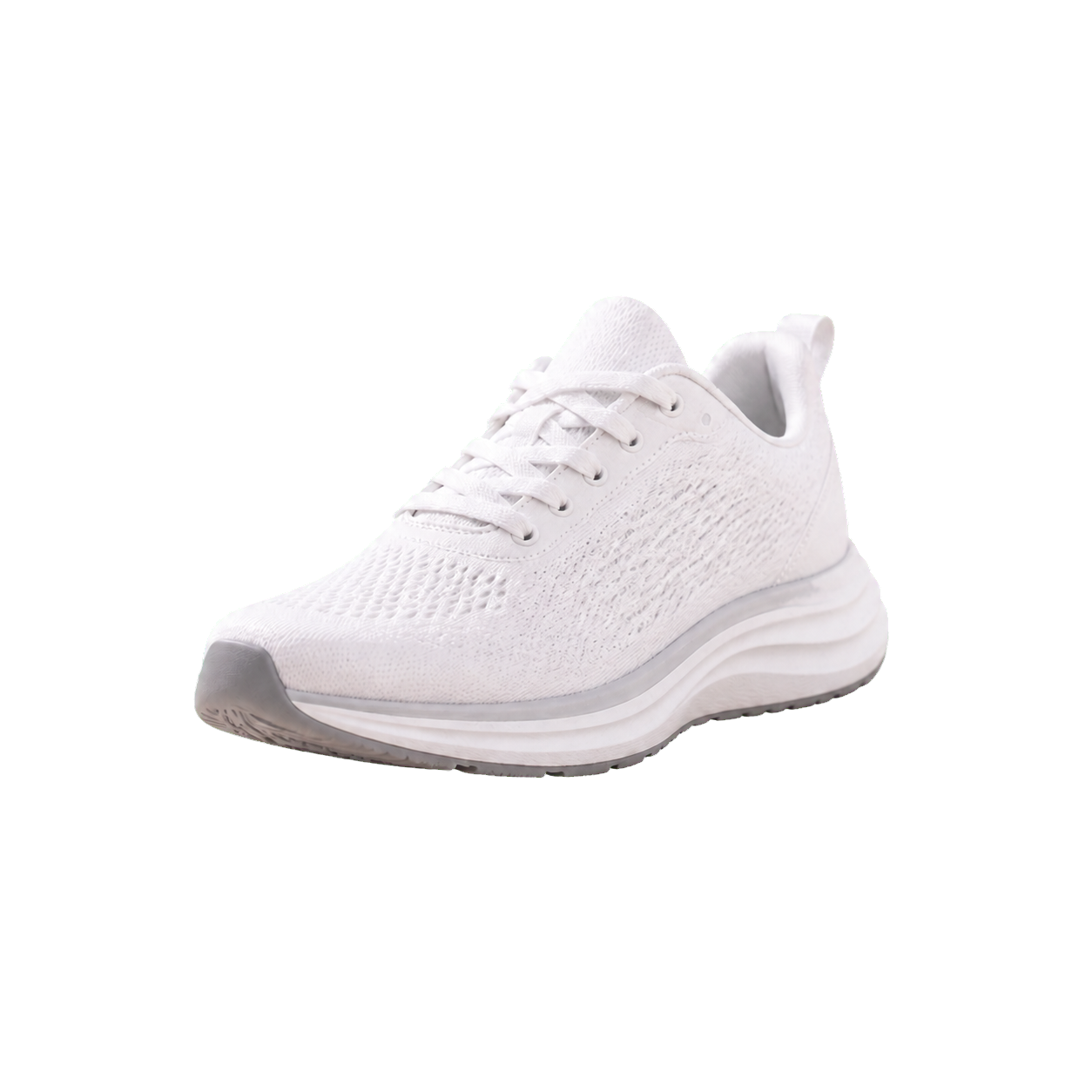
Product photos

Portraits
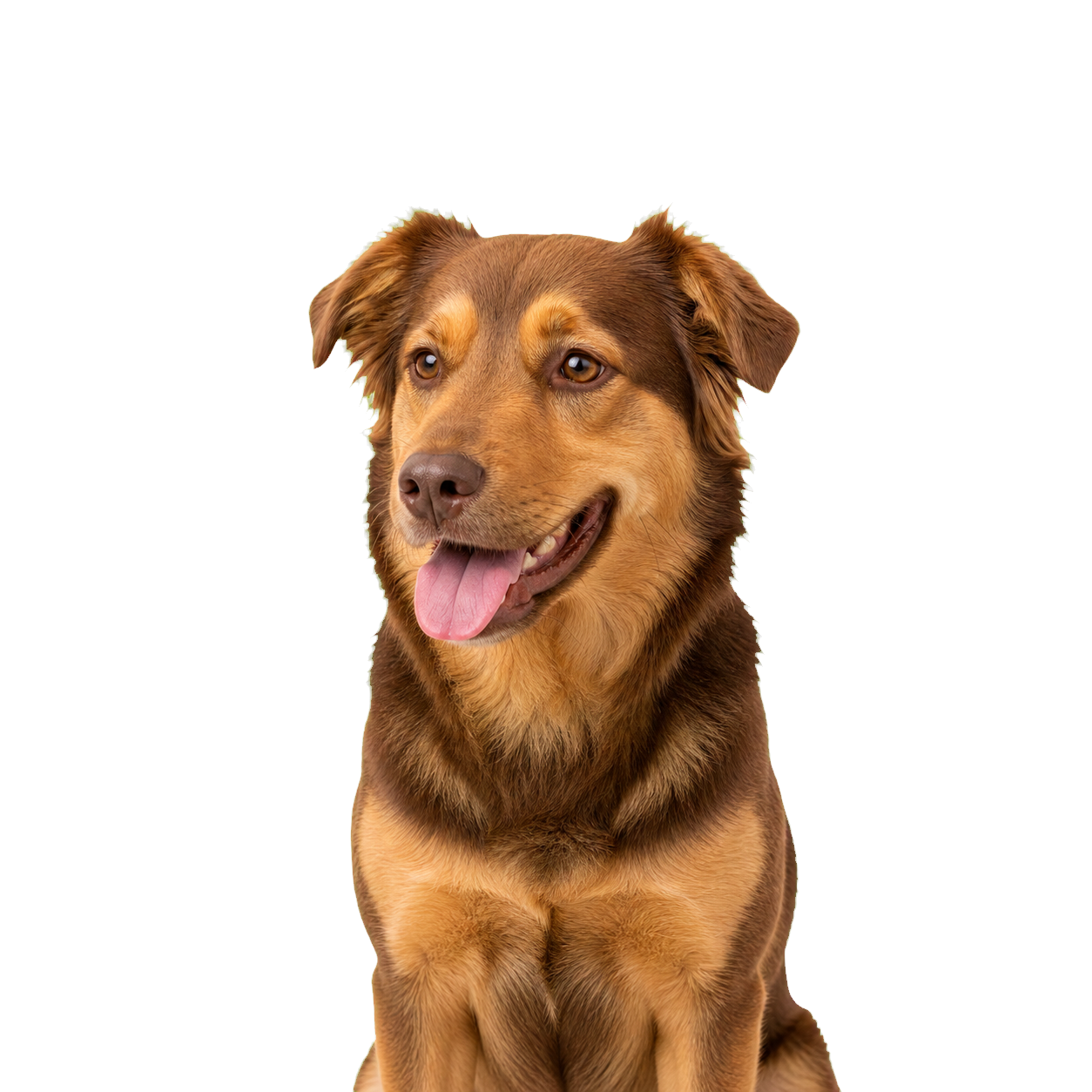
Pet photos
Go from a collection of photos to a set of ready-to-use images in three steps.
Sign in and choose your images. Bgbye removes the background from each photo.
Select all images or a smaller group. Apply a background, canvas size, or template together, then refine individual images.
Check each result and download your finished images in one ZIP file. Choose PNG, WebP, or JPEG for your workflow.
Skip repeating the same settings for every photo. Choose the images that belong together and edit them as a group.
Keep cutouts transparent, use a clean white background, or apply the same color or uploaded image to your selection.
Set a shared canvas size, center your subjects, and adjust padding for product listings, profile images, or social posts.
Use a template, add a soft shadow, or adjust brightness and contrast across selected images. Refine a single image when it needs extra attention.
Download all completed images or only your selection. Use PNG or WebP for transparent cutouts, and JPEG for images with a filled background.
Built for the photos you work with
Prepare product photos with the same white background and canvas size, or create matching portraits and social assets from a collection of different shots.
Give shop listings a shared background, centered subjects, and consistent spacing.
Prepare a coordinated set of portraits for profiles, team pages, or campaigns.
Check available credit packs and subscriptions before processing your batch.
Sign in to Bgbye, add your images to the batch editor, and let background removal finish. Select the images you want to edit together, apply your settings, and download the completed results as a ZIP.
There is no fixed image-count limit per batch. Each image must be 19.0 MB or smaller. Processing uses image credits.
You can upload PNG, JPG, JPEG, WEBP, or AVIF images. Download your edited results as PNG, WebP, or JPEG. Choose PNG or WebP if you need a transparent background; JPEG does not support transparency.
You need to sign in to process a batch. Batch processing uses image credits, and access is checked before processing starts. Visit the pricing page for the available credit packs and subscriptions.
Yes. Apply backgrounds, templates, canvas sizes, positioning, and adjustments to all images or only a selected group. You can also edit an individual image without changing the rest of the batch.
Yes. Use the image background remover on the home page to try a single image and review the cutout before starting a batch.
Remove backgrounds, bring your images into the same style, and download them together.