
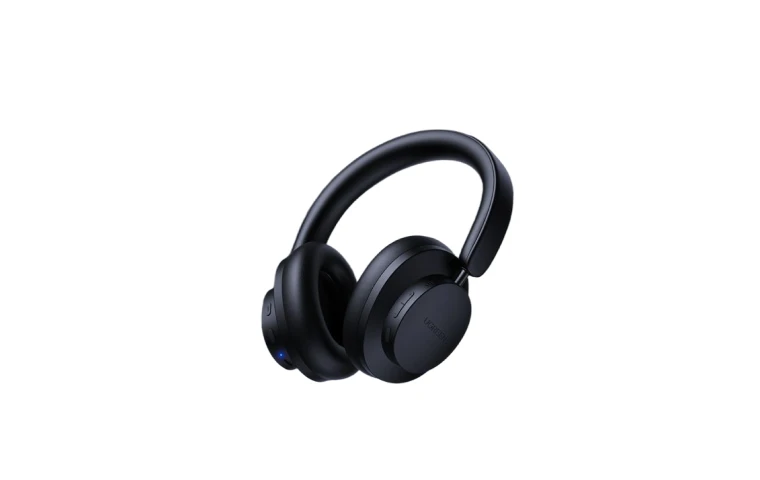
Make the item easier to read
A staged shot can feel busy. Removing the scene gives the item more focus while keeping the overall shape easy to understand.
Or drop images here.
PNG / JPG / WEBP / AVIF · Batch upload · Max 5 MB each

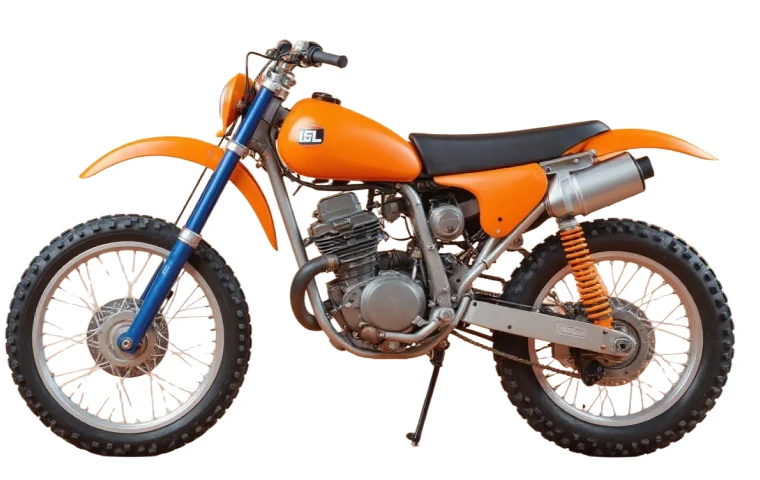
Remove product backgrounds for cleaner listings while keeping edges, texture, and reflective detail visible.
See how product photos hold their shape, texture, and reflective edges after busy scenes are removed.
A staged shot can feel busy. Removing the scene gives the item more focus while keeping the overall shape easy to understand.
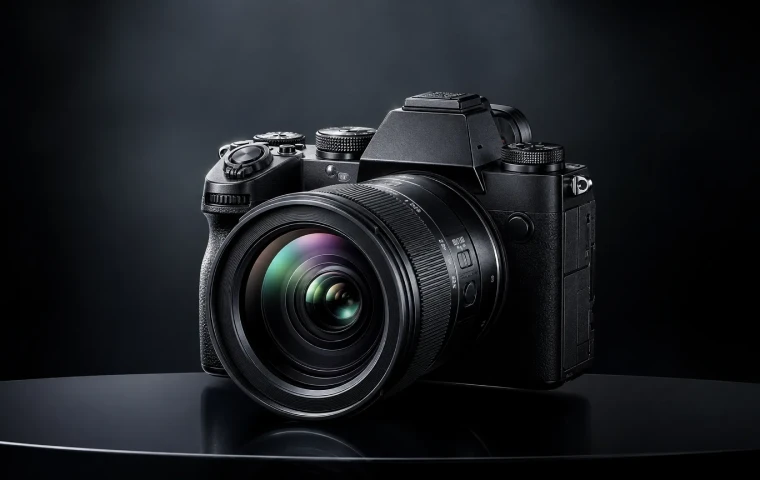
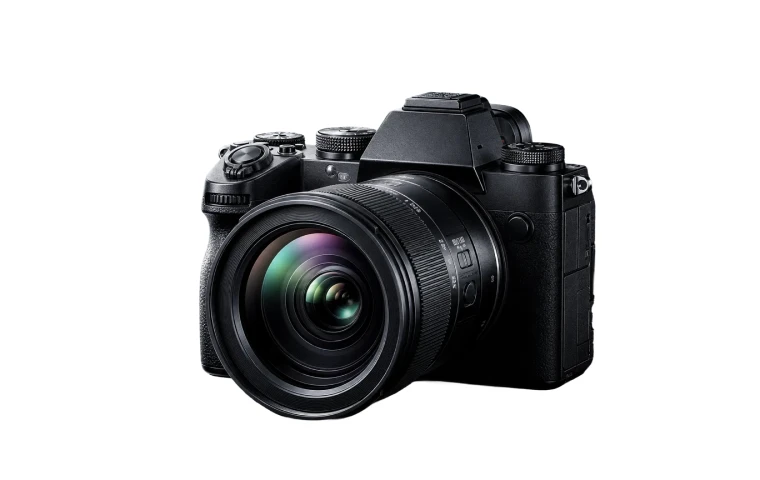
Dark surfaces need enough contrast for buttons, ridges, and texture to stay visible after the background is removed.

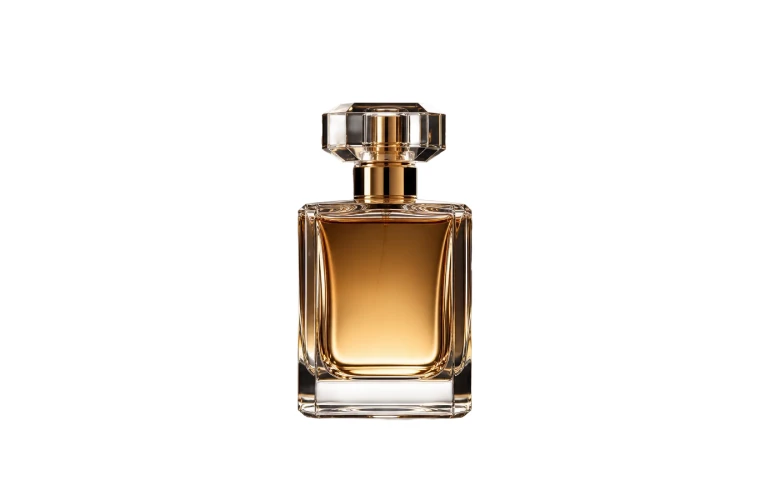
Glass, caps, and glossy edges should still feel crisp so the result does not look pasted onto the page.
A product image usually needs two checks: whether the source photo gives Bgbye enough detail, and whether the finished result still shows what shoppers care about.
Keep the whole item visible
Avoid cropping off handles, straps, corners, or packaging edges that buyers need to understand the product.
Give edges some contrast
Products work best when the outline does not disappear into a similarly colored wall, table, or prop.
Use steady lighting
Soft, even light helps labels, texture, glass, metal, and fabric stay readable after the background is removed.
Edges and openings
Look at straps, handles, holes, and gaps where the old background can leave small marks.
Texture and shine
Check fabric, glass, metal, and glossy surfaces so the object still feels real instead of flat.
Listing fit
Make sure the result has enough clean space for thumbnails, ads, catalogs, or product-page crops.
Quick answers about ecommerce images, edge detail, and clean results.
Use a product background remover for main images, listings, paid ads, catalogs, and covers when the item needs to stay in focus. It is especially useful when a busy room, table, hand, or outdoor scene distracts from the product itself.
Yes. Bgbye can process dark, glossy, and reflective items, but these images are worth previewing before you use them in a shop or ad. If the result feels too soft, start again with a clearer photo of the same item.
Bgbye prepares a cleaner result that is easier to crop, reuse, or place into product pages, ads, catalogs, and simple design layouts. You can keep the item centered or add space around it later for marketplace thumbnails. For the general tool, start from the Bgbye image background remover.
Yes. Download the result, then crop or place it wherever you prepare listings, ads, or catalog assets. Bgbye is meant to fit into the tools you already use rather than replace your product-page workflow. If you are preparing logos or artwork instead, see logos and graphics.
Yes. Batch upload is supported, so you can start several product images in one session and review the results together. This is useful when you are preparing a small catalog, campaign set, or group of marketplace images.
Bgbye can prepare the result for a clean background style that is easy to place into product pages and design tools. Choose the option that fits how you plan to use the image before starting the upload.