Create a setting for your subject
Describe your scene and generate an AI background
Describe a setting and the generated background will be applied to your current cutout. Try a studio, a room, or a scene for a product image, then adjust your subject’s size and position.
AI actions use credits from your balance. Background generation and expansion require sign-in and enough credits.
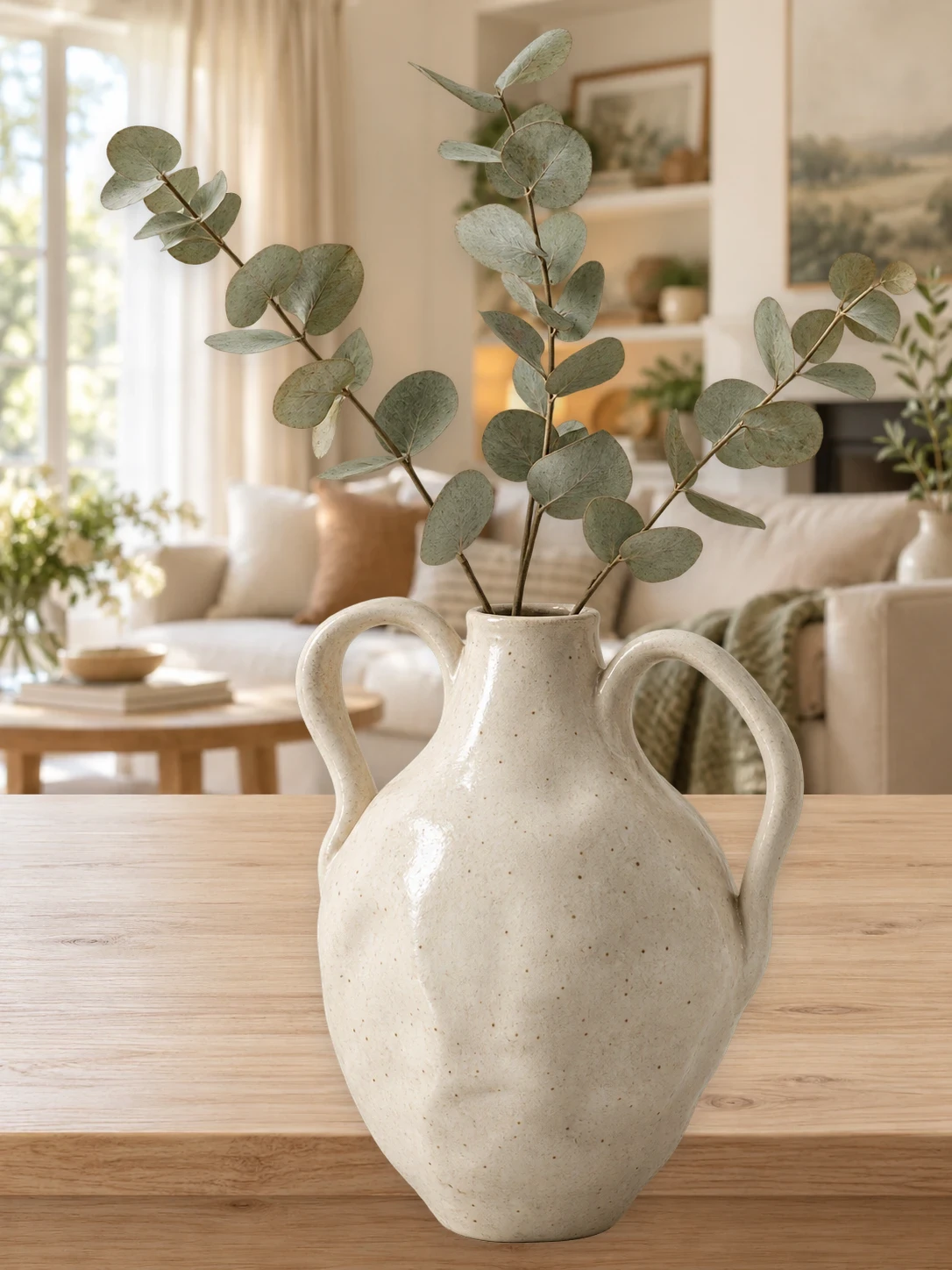


Start with the scene you have in mind.
Describe the setting, colors, and light. Generate a background, review the result, and adjust the description to try another direction.
Generate an AI background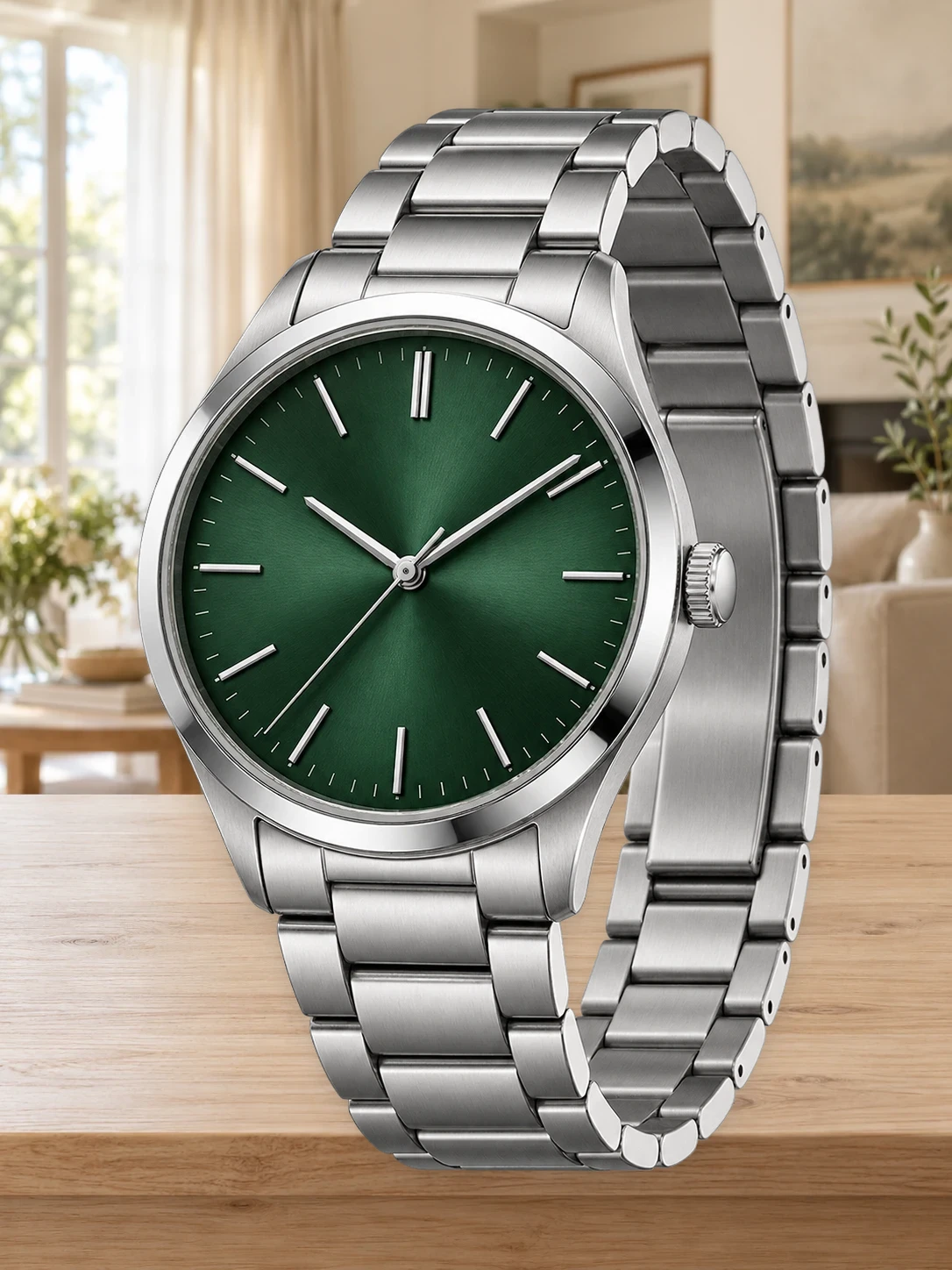
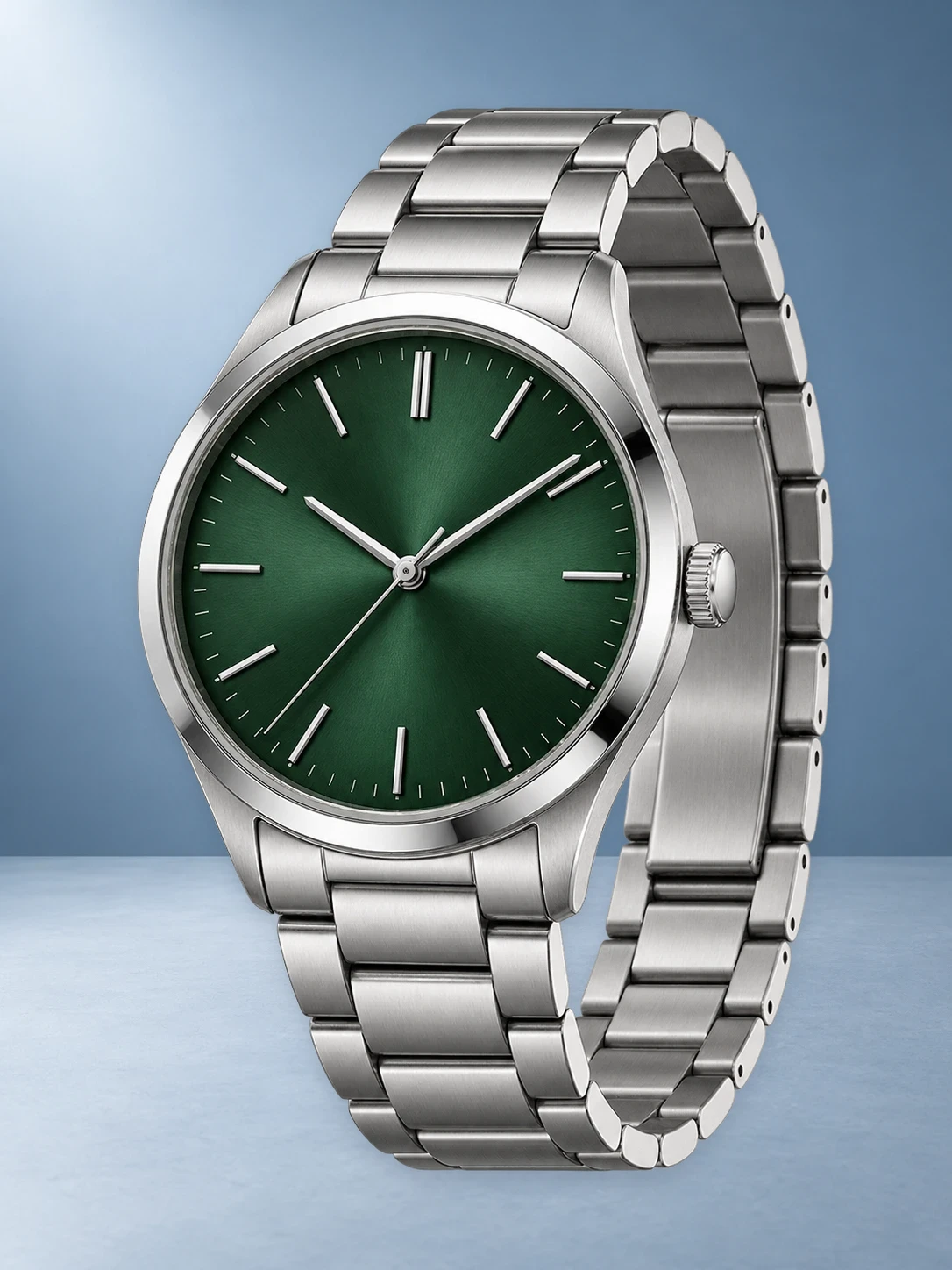
Make the background work with your subject.
After generating the background, adjust its fit and your subject’s size and position. Continue with text or a template when your image needs a layout.
Change the backgroundFrom your photo to a finished image
- 01
Upload your photo
Remove the background from your photo, then open the AI background panel.
- 02
Describe and generate
Enter your scene description, review the displayed credit cost, and start generation.
- 03
Review and download
Adjust the composition and download your finished image as PNG, JPG, or WebP.
Common questions about Bgbye
Does the AI generate my product or person again?
This tool generates a separate background and places your existing cutout on it. Review the edges, perspective, and lighting before downloading.
How many credits does one image use?
Background removal, background generation, and expansion are separate AI actions with different credit costs. Check the estimate beside the action button before processing. The per-credit price above is the unit price of your credits, not one flat price for every image.
Which image types can I upload?
You can upload PNG, JPG, JPEG, WebP, or AVIF images.
Can I review the result before I download it?
Yes. You can preview the result, compare the edges, and download only when it looks ready.