Create more room around your image
Expand your image with AI for banners and text
Use AI to extend the current composition in the editor for a banner, cover, or text. Transparent areas are filled with white, so check your background and composition before expanding.
AI actions use credits from your balance. Background generation and expansion require sign-in and enough credits.
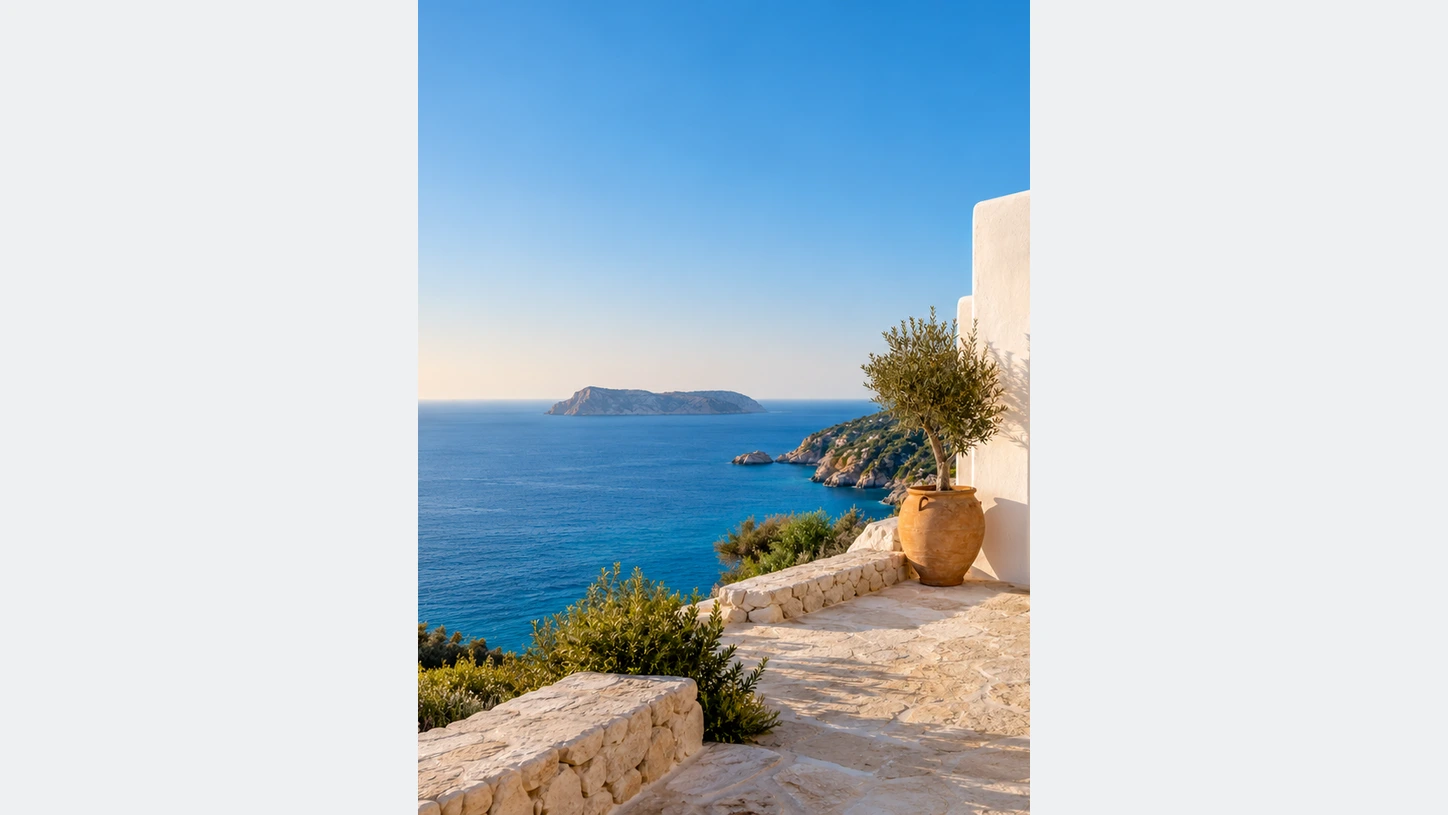
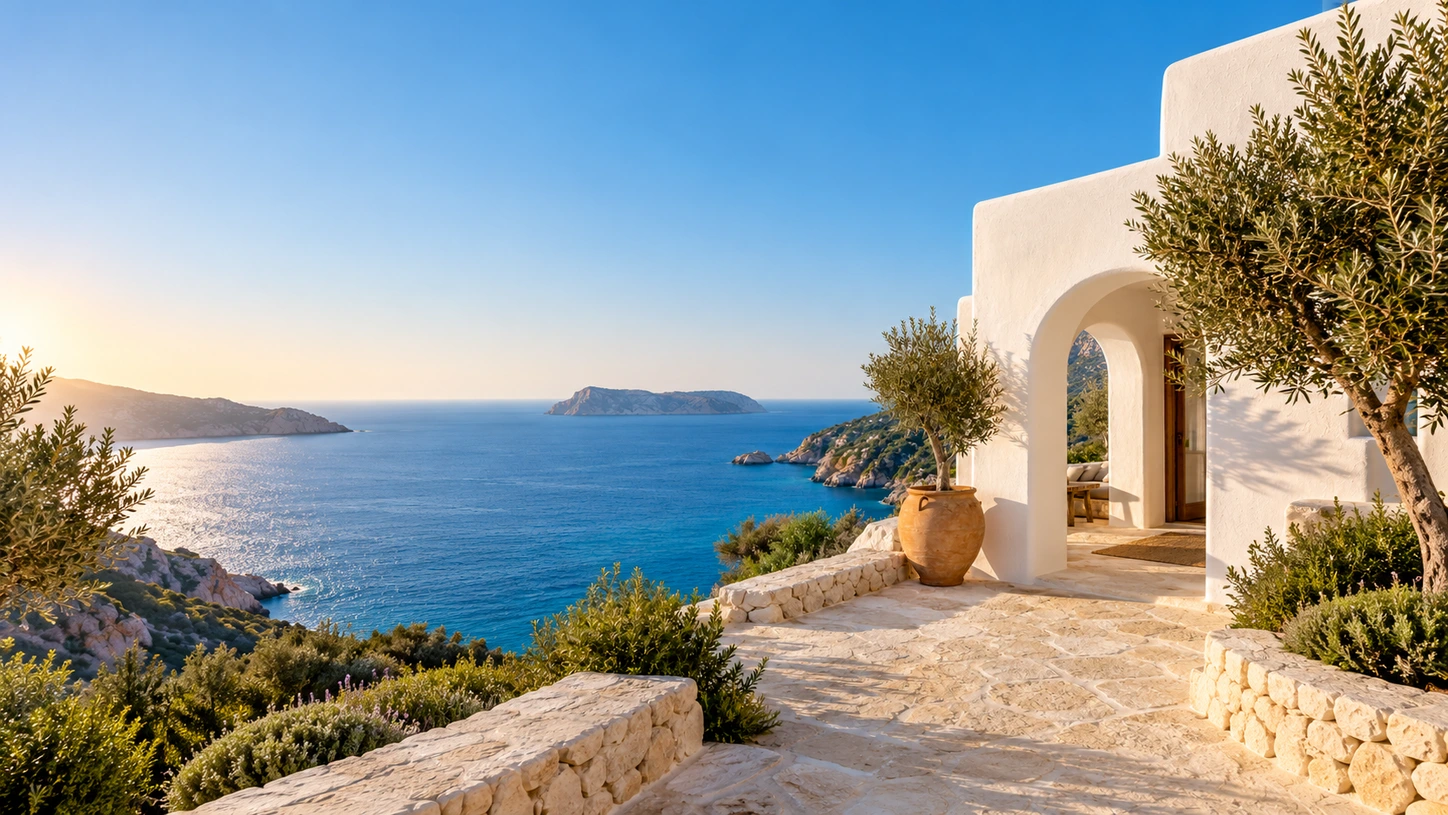
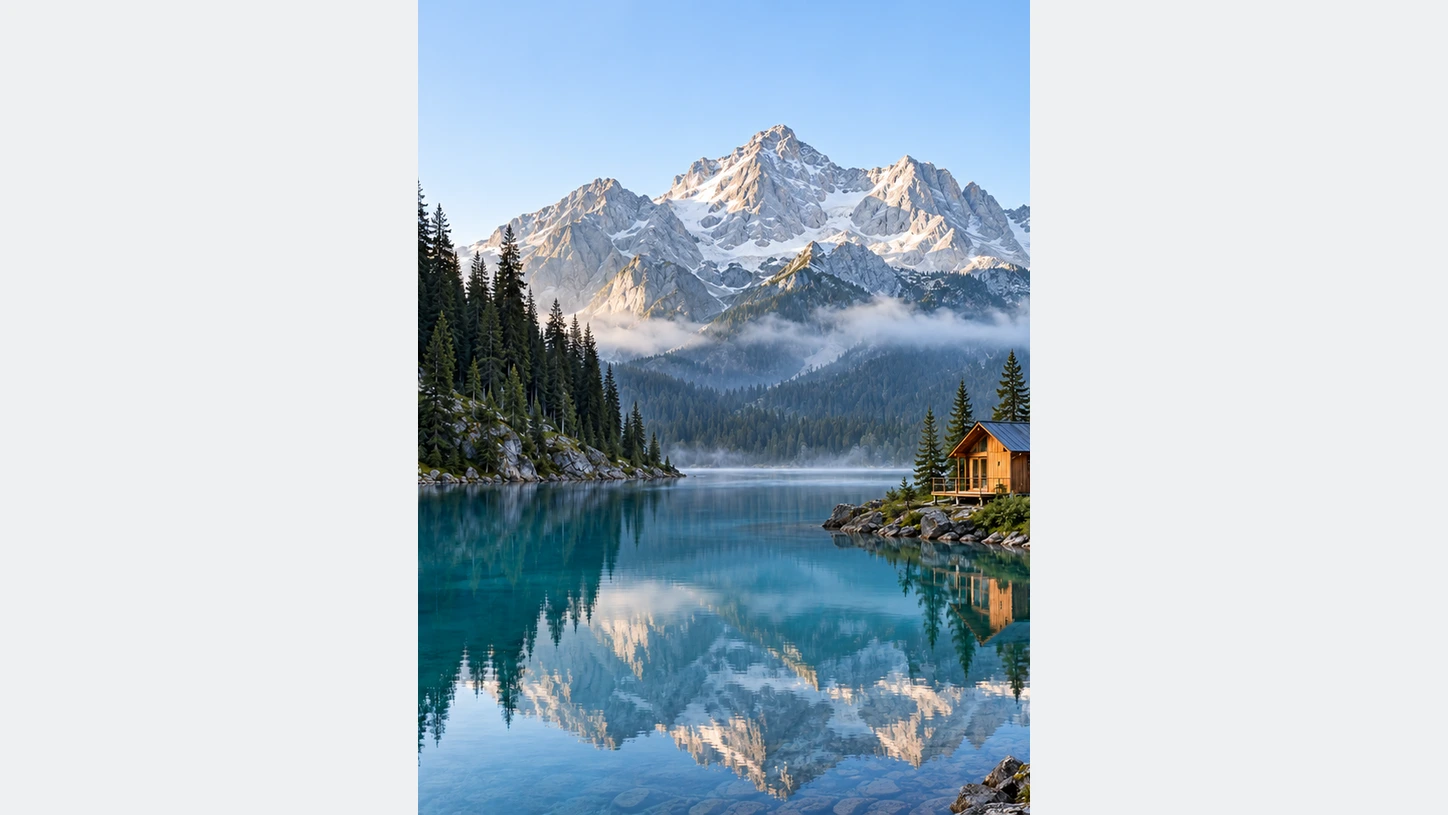
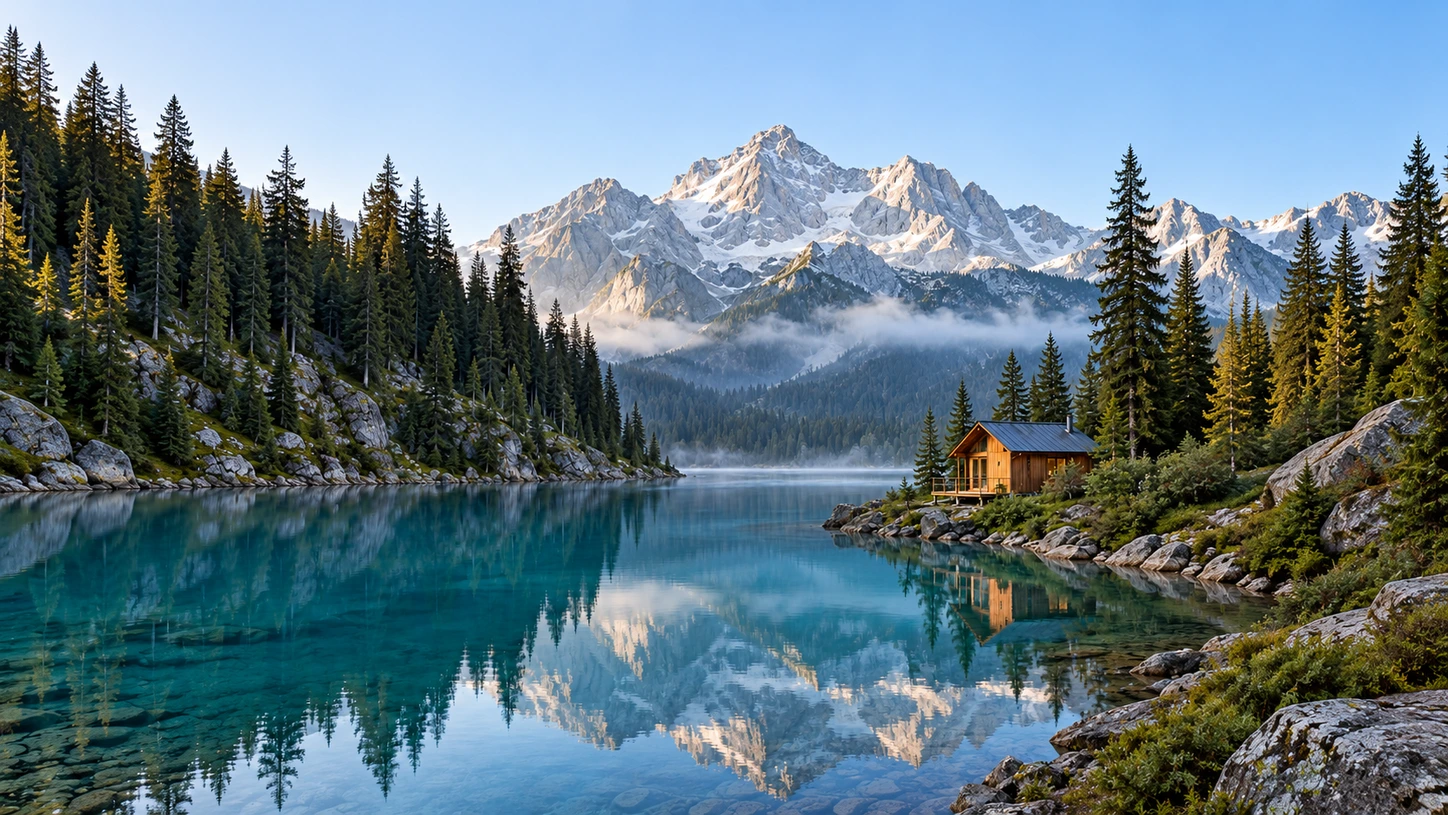
Expand the picture, not just the empty canvas.
Choose how far to extend the image horizontally and vertically. AI fills the new area with generated content; review the result before continuing.
Expand your image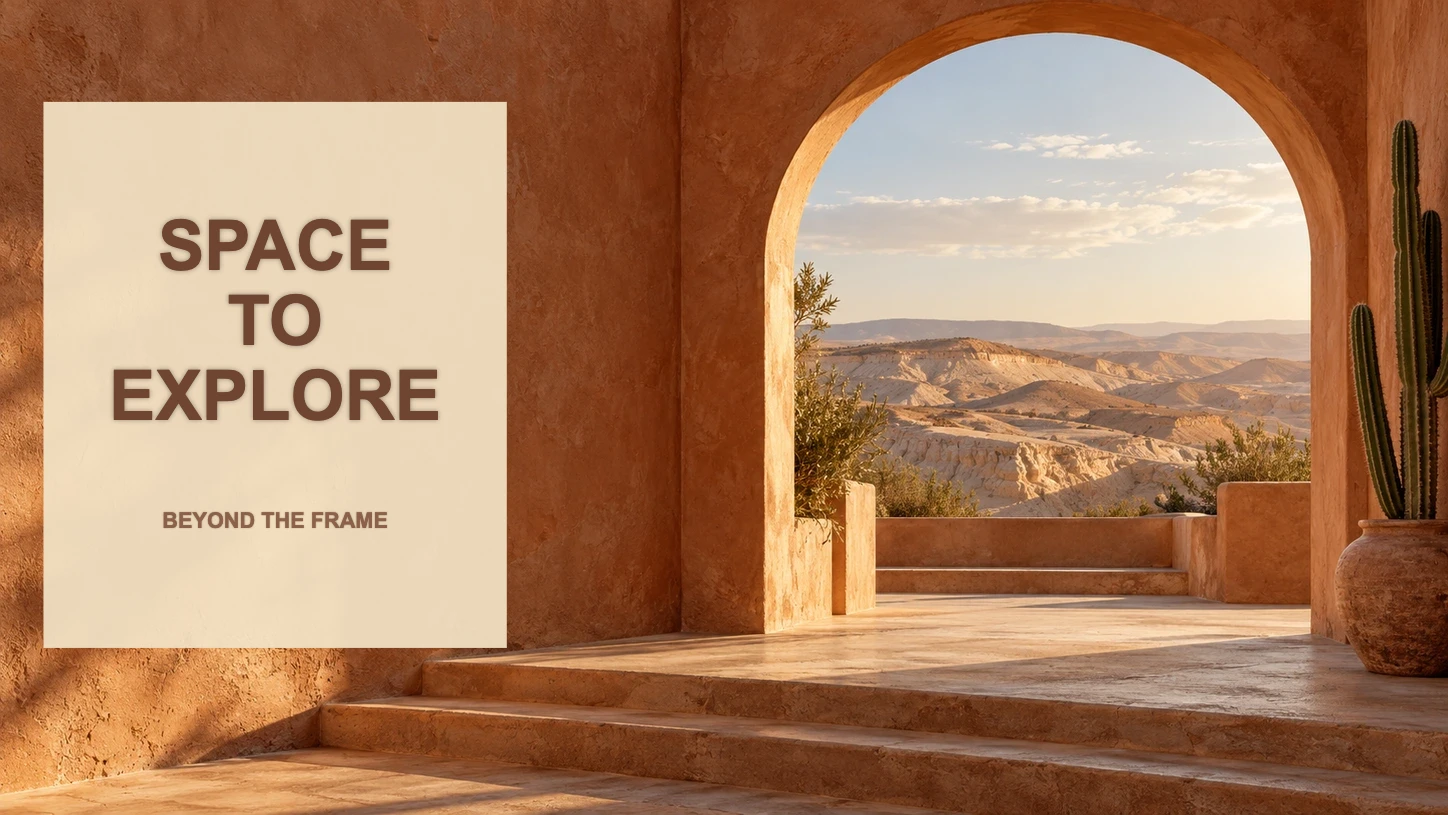
Leave room for your next design.
Use the expanded image in a banner, cover, or promotional layout. Add text and adjust the composition in the editor.
Explore templates and textFrom your photo to a finished image
- 01
Start with your image
Upload your image, remove its background, and set up the background and composition. Then open AI expansion.
- 02
Choose the expansion range
Set the horizontal and vertical expansion, review the displayed credit cost, and generate.
- 03
Check the new edges
Review the generated surroundings, continue editing if needed, and download the finished image.
Common questions about Bgbye
Is AI expansion the same as resizing the canvas?
Resizing changes the canvas dimensions. AI expansion generates new content around the current composition in the editor and fills transparent areas with white. Review the new edges and details before using the result.
How many credits does one image use?
Background removal, background generation, and expansion are separate AI actions with different credit costs. Check the estimate beside the action button before processing. The per-credit price above is the unit price of your credits, not one flat price for every image.
Which image types can I upload?
You can upload PNG, JPG, JPEG, WebP, or AVIF images.
Can I review the result before I download it?
Yes. You can preview the result, compare the edges, and download only when it looks ready.